skip to main |
skip to sidebar
 Windowz system ini adalah program khusus untuk memudahkan anda shutdown, restart, log off dan hapuskan file di dalam recycle bin anda. Fungsi2 yang saya masukkan di dalam program ini antaranya ialah always on top, system tray, run at startup dan transparent. Ianya bersaiz kecil dan mudah digunakan. Interfacenya juga dibuat bagi mesra pengguna dan terdapat masa dan tarikh pada bahagian statusbar. Apabila anda mengetick Run at Startup, program ini akan sentiasa muncul pada bawah kiri (berhampiran start button) setiap kali anda menghidupkan komputer. Jikalau anda tertekan butang shutdown atau restart, anda boleh menghentikan proses ini dengan menekan butang abort. Setiap proses di beri masa sebanyak 15 saat kecuali log off. Diharap program ini dapat memberi kemudahan kepada pengguna. Sebarang "bug", masalah atau cadangan sila tinggalkan komen di sini Windowz system ini adalah program khusus untuk memudahkan anda shutdown, restart, log off dan hapuskan file di dalam recycle bin anda. Fungsi2 yang saya masukkan di dalam program ini antaranya ialah always on top, system tray, run at startup dan transparent. Ianya bersaiz kecil dan mudah digunakan. Interfacenya juga dibuat bagi mesra pengguna dan terdapat masa dan tarikh pada bahagian statusbar. Apabila anda mengetick Run at Startup, program ini akan sentiasa muncul pada bawah kiri (berhampiran start button) setiap kali anda menghidupkan komputer. Jikalau anda tertekan butang shutdown atau restart, anda boleh menghentikan proses ini dengan menekan butang abort. Setiap proses di beri masa sebanyak 15 saat kecuali log off. Diharap program ini dapat memberi kemudahan kepada pengguna. Sebarang "bug", masalah atau cadangan sila tinggalkan komen di sini
Klik sini untuk download :
2Shared
Megaupload
MediaFire

 Pernah anda mengalami situasi dimana anda perlu format komputer dan install windows dengan menggunakan pen drive, terutamanya apabila CD/DVD ROM anda rosak?. Namun proses untuk membuat bootable Windows pada pen drive ini biasanya adalah proses yang rumit dan panjang. Pernah anda mengalami situasi dimana anda perlu format komputer dan install windows dengan menggunakan pen drive, terutamanya apabila CD/DVD ROM anda rosak?. Namun proses untuk membuat bootable Windows pada pen drive ini biasanya adalah proses yang rumit dan panjang.
Kini dengan adanya WinToFlash, proses untuk membuat bootable Windows kini dipermudahkan untuk anda. Anda hanya perlu masukkan CD/DVD Windows berserta pen drive dan WinToFlash akan menguruskan segalanya.
Salah satu keistimewaan WinToFlash ini adalah Silent Install. Silent Install ini membolehkan proses install akan dilakukan secara automatik (Tidak perlu masukkan nombor siri, Nama Computer, Workgroup, dan sebagainya)
Program ini boleh digunakan untuk membuat bootable pen drive untuk Windows XP, Vista, dan 7 malah Windows PE (yang digunakan untuk membaiki komputer) juga boleh dimasukkan.
Cara untuk membuat Silent Install Menggunakan WinToFlash :
1. Masukkan pen drive dan juga CD/DVD Windows anda
2. Bukak program WinToFlash
3. Pergi kepada bahagian Task dan pilih perisian Windows anda pada Task Type, tekan butang Create

4. Di tab Basic Parameters, pilih setting yang berkenaan

5. Pergi kepada tab yang seterusnya iaitu Setup Parameters dan pilih User Selected pada Setup Level. Di sini anda bolehlah memasukkan setting2 seperti EULA Accepted, Auto Partition, Nombor Siri Windows, dan sebagainya.

6. Pergi kepada Task dan klik Run
7. Tick I Accepted the term of the license agreement dan tekan butang Continue
8. Satu paparan Warning akan muncul mengatakan proses ini akan membuang segala file didalam pen drive anda (Format). Untuk mengesahkan tekan butang OK dan anda dapat melihat proses memasukkan Windows dalam pen drive anda sedang dijalankan
* Sebaiknya sebelum membuat bootable Windows, pastikan anda backup dulu file di dalam pen drive anda.

9. Setelah selesai tekan butang finish dan tutup WinToFlash
10. Kini anda boleh format komputer anda dengan mudah dan cepat
* Untuk format melalui pen drive, boot komputer melalui pen drive anda pada permulaan semasa komputer anda dihidupkan
Sila download disini WinToFlash
 Hitungan detik malam 31 Ogos 2009 merdekalah negara yang 52 kalinya Melepasi fasa ke dua merdeka ini, melangkah merdeka ini ke arah yang baru meninggalkan keperitan zaman terdahulu Detikan jarum saat dan minit Detik-detik terus berlalu pergi tanpa menoleh ke belakang lagi, membawa kita ke peringkat seterusnya peringkat yang tidak tahu apa arahnya
merdeka ini menitinya kita ke fasa yang ke dua
fasa yang makin meningkat usianya
setelah menjengah ke setengah abadnya
kini merdeka tetap digenggam erat
bahtera berkibar megah dek tangan sang pejuang
kematangan dan kebijaksanaan yang terpendam
meniti jubli emas negara
dari belenggu cengkaman sang penjajah
memberi erti keperitan yang sungguh
di tempuh selagi tapah, sabar, redha
Merdeka ini, tetap tergoyah dek manusia itu
Tidak tahu menilai keharmonian bersama
yang telah lama konsi bersama
hancur lebur dek kelantangan suara itu
suara kejam dari lubuk hati yang gelap
Suara ungkit mngungkit hati tidak senang
Rasa ketidakpuasan melonjak lonjak
bak nakhoda di lautan yang bergelora
sanggup mengingkari amanat
Sumpah setia kau sebagai rakyat merdeka
Kepedihan yang dasyat membebankan
terasa dek pejuang pertiwi
terpinggir pengorbanan,sia-sia
Nilai murni di buang jauh
saat keruntuhan mula menjengah
pencetus perpecahan keharmonian
Sudah-sudahlah wahai kaumku sekalian
Hiduplah dengan aman dan damai
di bumi yang telah berbakti
melangkah kita mengharungi
52 tahun merdeka yang bermakna ini
Jangan biarkan 52 tahun itu tercalar, terobek,
Umat pelbagai kaum bercakaran, bertindasan
mencerca satu demi satu sang pejuang
Fikirkanlah bahawa hidup ini
hanya persinggahan yang sementara
saki baki hidup hargai sebaiknya
sementara kemerdekaan masih lagi di tangan kita.
* MERDEKA! MERDEKA! MERDEKA!
 Cara ini hanya membuat folder anda tidak dapat dilihat seperti folder biasa, tetapi yang anda boleh nampak hanya Recycle Bin sahaja. Ini bermakna folder anda telah menyamar atau bertukar menjadi Recycle Bin dan fungsinya juga telah ditukar. Cara ini hanya membuat folder anda tidak dapat dilihat seperti folder biasa, tetapi yang anda boleh nampak hanya Recycle Bin sahaja. Ini bermakna folder anda telah menyamar atau bertukar menjadi Recycle Bin dan fungsinya juga telah ditukar.
Ingin membuatnya?. Ikuti Langkah Berikut :
1. Buat satu folder kosong pada desktop anda
2. Namakan folder anda dan diakhirnya letakkan kod ini .{645FF040-5081-101B-9F08-00AA002F954E}
* Contohnya jika anda membuat folder Private, klik pada folder dan tekan F2 untuk rename dan taipkan Private.{645FF040-5081-101B-9F08-00AA002F954E}
4. Anda akan dapati bahawa folder Private anda tersebut akan kelihatan seperti Recycle Bin
5. Untuk proses mendapatkan balik folder anda, bukak CMD (Windows + R dan taipkan CMD)
6. Taipkan cd desktop (Jikalau folder anda berada pada desktop), copy kod di bawah dan pastekan pada Command Prompt anda

ren Private.{645FF040-5081-101B-9F08-00AA002F954E} Private
7. Kini folder anda sudah boleh digunakan kembali
 Ikuti langkah2 berikut : Ikuti langkah2 berikut :
1. Buat satu folder pada dekstop anda (Cth : Folder Lock)
2. Buka notepad, copy kod di bawah dan pastekan pada notepad anda
cls
@ECHO OFF
title Folder Private
if EXIST "Control Panel.{21EC2020-3AEA-1069-A2DD-08002B30309D}" goto UNLOCK
if NOT EXIST Private goto MDLOCKER
:CONFIRM
echo Are you sure you want to lock the folder(Y/N)
set/p "cho=>"
if %cho%==Y goto LOCK
if %cho%==y goto LOCK
if %cho%==n goto END
if %cho%==N goto END
echo Invalid choice.
goto CONFIRM
:LOCK
ren Private "Control Panel.{21EC2020-3AEA-1069-A2DD-08002B30309D}"
attrib +h +s "Control Panel.{21EC2020-3AEA-1069-A2DD-08002B30309D}"
echo Folder locked
goto End
:UNLOCK
echo Enter password to unlock folder
set/p "pass=>"
if NOT %pass%== 123456 goto FAIL
attrib -h -s "Control Panel.{21EC2020-3AEA-1069-A2DD-08002B30309D}"
ren "Control Panel.{21EC2020-3AEA-1069-A2DD-08002B30309D}" Private
echo Folder Unlocked successfully
goto End
:FAIL
echo Invalid password
goto end
:MDLOCKER
md Private
echo Private created successfully
goto End
:End
3. Cari baris pada "if NOT %pass%== 123456 goto FAIL", dan tukarkan password 123456 dengan password anda
4. Savekan file tersebut sebagai Folder Lock.bat atau AnyName.bat ke dalam folder Folder Lock
5. Kemudian anda pergi ke website ini F2ko.de untuk mendownload Bat To Exe Converter atau anda boleh membuatnya secara online di F2ko.de
6. Buka program Bat To Exe Converter dan ikut langkah seperti gambar di bawah
 
7. Setelah selesai di Compile, test program anda
Cara untuk menggunakannya :
1. Double klik fail Folder Lock.exe dan masukkan password encryption anda
2. Folder Private akan dihasilkan. Simpan fail penting anda di dalam folder Private
3. Double klik Folder Lock.exe sekali lagi dan masukkan password encryption
4. Klik Y untuk lock folder anda
5. Kali ini untuk membuka balik folder anda yang dikunci tadi, buka program Folder Lock.exe, masukkan password encryption dan masukkan password yang anda buat pada file .bat di awal post untuk membuka folder Private.
* Ini bermakna terdapat 2 password bagi mengukuhkan security folder anda
* Untuk meletakkan icon pada program anda, sila pergi ke IconArchive
 Ikuti langkah berikut : 1. Pilih folder anda yang ingin disembunyikan 2. Pilih pada rename(F2) 3. Tekan ALT + 0160 atau ALT + 255 pada num lock keyboard anda. Pastikan gambar anda seperti gambar dibawah

4. Right klik pada folder dan pilih properties
5. Pergi pada Customize tab dan tekan butang Change Icon...
6. Pilih icon tersembunyi seperti gambar dibawah

7. Tekan ok kemudian Apply
Untuk memastikan folder anda telah disembunyikan, klik pada kawasan folder tadi. Anda akan dapat melihat kotak biru kecil pada folder anda seperti gambar dibawah

 Mungkin anda seringkali mendapati ralat atau error reporting apabila salah satu dari program atau windows operating system anda tidak dapat berfungsi dengan baik. Semestinya anda merasa rimas dan ingin memadam/mematikan error reporting ini. Mungkin anda seringkali mendapati ralat atau error reporting apabila salah satu dari program atau windows operating system anda tidak dapat berfungsi dengan baik. Semestinya anda merasa rimas dan ingin memadam/mematikan error reporting ini.
Ikuti langkah berikut :
1. Tekan Start dan pergi pada Control Panel
2. Tekan Performance and Maintenance dan tekan pada System
3. Kemudian tekan pada Tab Advanced
4. Tekan butang Error Reporting
5. Tick pada Disable error reporting
6. Tekan Ok
Anda juga boleh memadam/mematikan Error Reporting melalui cara Services dan Registry Editor
Services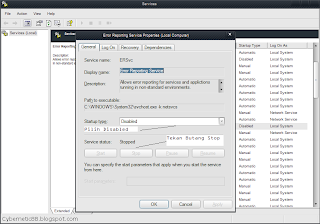 1. Tekan Start dan pergi kepada Run (Windows + R) 2. Taipkan services.msc3. Cari Error Reporting Services dan double klik services tersebut 4. Tekan Butang Stop (jika services status berlabel started) 5. Kemudian pilih Disabled pada startup type 6. Tekan butang Ok Registry Editor Jika masih terdapat ralat atau error setelah anda memadam/mematikan error reporting, anda boleh mencuba cara ini pula. 1. Bukak notepad dan copy kod dibawah REGEDIT4
[HKEY_LOCAL_MACHINE\SOFTWARE\Microsoft\PCHealth\ErrorReporting]
"AllOrNone"=dword:00000000
"DoReport"=dword:00000000
"IncludeKernelFaults"=dword:00000000
"IncludeMicrosoftApps"=dword:00000000
"IncludeWindowsApps"=dword:00000000
"ShowUI"=dword:00000000
2. Pastekan pada notepad anda 3. Savekan sebagai DisableError.reg atau AnyName.reg 4. Double klik file .reg tersebut 5. Jika anda ingin mengakifkan error reporting kembali, anda hanya copy kod dibawah dan ulangi langkah yang sama REGEDIT4
[HKEY_LOCAL_MACHINE\SOFTWARE\Microsoft\PCHealth\ErrorReporting]
"AllOrNone"=dword:00000001
"DoReport"=dword:00000001
"IncludeKernelFaults"=dword:00000001
"IncludeMicrosoftApps"=dword:00000001
"IncludeWindowsApps"=dword:00000001
"ShowUI"=dword:00000001
Bagi pengguna Vista, anda juga boleh memadam/mematikan error reporting.  ikuti langkah berikut : 1. Tekan Start dan pergi kepada Run (Windows + R) 2. Taipkan gpedit.msc3. Pada panel sebelah kiri pergi kepada Computer Configuration > Administrative Templates > Windows Components > Windows Error Reporting4. Pada panel sebelah kanan, enablekan Disable Windows Error Reporting 5. Tekan butang Ok
 Ikuti langkah dibawah : Ikuti langkah dibawah :
1. Bukak notepad anda dan copy kod dibawah
Set wshShell =wscript.CreateObject("WScript.Shell")
do
wscript.sleep 100
wshshell.sendkeys "{CAPSLOCK}"
wshshell.sendkeys "{NUMLOCK}"
wshshell.sendkeys "{SCROLLLOCK}"
loop
2. Pastekan pada notepad
3. Savekan sebagai Disco.vbs atau AnyName.vbs
4. Double klik file .vbs tersebut
5. Untuk menghentikannya, bukak Task Manager (CTRL + ALT + DELETE)
6. Pada "Processes" pilih wscript.exe dan tekan butang "End Process"
Kod dibawah membuatkan keyboard anda bercahaya sepantas kilat
Set wshShell =wscript.CreateObject("WScript.Shell")
do
wscript.sleep 200
wshshell.sendkeys "{CAPSLOCK}"
wscript.sleep 100
wshshell.sendkeys "{NUMLOCK}"
wscript.sleep 50
wshshell.sendkeys "{SCROLLLOCK}"
loop
* Hanya Caps, Num, Scroll lock keys saja bercahaya
 1. Right klik pada icon Recycle Bin 1. Right klik pada icon Recycle Bin
2. Tekan Properties
3. Tick kan pada "Do not move files to the Recycle Bin. Remove files immediately when deleted"
4. Tekan butang Apply dan seterusnya butang Ok
5. Sekarang anda boleh mencuba untuk memastikan sebarang item yang ingin dihapuskan tidak akan ditempatkan didalam Recycle Bin tetapi terus dihapuskan serta merta
Cara lain yang anda boleh gunakan ialah melalui Keyboard Shortcut dan melalui Registry Editor
Keyboard Shortcut
Hanya tekan SHIFT + DELETE pada item tersebut
Registry Editor
 1. Copy kod dibawah 1. Copy kod dibawah
REGEDIT4

[HKEY_LOCAL_MACHINE\SOFTWARE\Microsoft\Windows\CurrentVersion\Explorer\BitBucket]
"NukeOnDelete"=dword:00000001
2. Pastekan pada notepad anda
3. Savekannya sebagai DeleteOnce.reg atau AnyName.reg
4. Double klik file .reg tersebut untuk masukkannya ke dalam registry
5. Jika anda ingin mengembalikannya seperti asal, anda hanya perlu copy kod dibawah dan ulangi langkah yang sama
REGEDIT4

[HKEY_LOCAL_MACHINE\SOFTWARE\Microsoft\Windows\CurrentVersion\Explorer\BitBucket]
"NukeOnDelete"=dword:00000000
Gpedit.msc
1. Pergi kepada butang start dan tekan run 2. taipkan "gpedit.msc", tekan ok 3. Cari User Configuration/Administrative Template/Windows Components/Windows Explorer4. Pada panel sebelah kanan anda, tekan 2 kali pada "Do not move deleted files to the Recycle Bin"  5. Pilih enable dan tekan butang Apply, Ok.
 Disini anda boleh menterbalikkan setiap patah perkataan anda inginkan dengan mudah. Ianya hanya menggunakan kod javascript dan boleh didapati diakhir post Disini anda boleh menterbalikkan setiap patah perkataan anda inginkan dengan mudah. Ianya hanya menggunakan kod javascript dan boleh didapati diakhir post
Apabila selesai mendownload anda boleh mengupload file .php tersebut pada server web anda atau terus double klik file .php tersebut untuk menggunakannya
Download di sini :
2Shared
MediaFire
 Disini saya postkan beberapa trick yang menarik dengan menggunakan kod javascript. Anda hanya perlu copy salah satu kod dibawah dan pastekan pada kotak URL (Adress Bar anda. Disini saya postkan beberapa trick yang menarik dengan menggunakan kod javascript. Anda hanya perlu copy salah satu kod dibawah dan pastekan pada kotak URL (Adress Bar anda.
1. Megedit halaman web
javascript:document.body.contentEditable='true'; document.designMode='on'; void 0
2. Gambar menari
javascript:R=0; x1=.1; y1=.05; x2=.25; y2=.24; x3=1.6; y3=.24; x4=300; y4=200; x5=300; y5=200; DI=document.images; DIL=DI.length; function A(){for(i=0; i-DIL; i++){DIS=DI[ i ].style; DIS.position='absolute'; DIS.left=(Math.sin(R*x1+i*x2+x3)*x4+x5)+"px"; DIS.top=(Math.cos(R*y1+i*y2+y3)*y4+y5)+"px"}R++}setInterval('A()',5); void(0);
javascript:R=0; x1=.1; y1=.05; x2=.25; y2=.24; x3=1.6; y3=.24; x4=300; y4=200; x5=300; y5=200; DI=document.getElementsByTagName("img"); DIL=DI.length; function A(){for(i=0; i-DIL; i++){DIS=DI[ i ].style; DIS.position='absolute'; DIS.left=(Math.sin(R*x1+i*x2+x3)*x4+x5)+ "px"; DIS.top=(Math.cos(R*y1+i*y2+y3)*y4+y5)+" px"}R++}setInterval('A()',5); void(0);
3. Gambar bergerak atas dan ke bawah
javascript:R=0; x1=.1; y1=.05; x2=.25; y2=.24; x3=1.6; y3=.24; x4=300; y4=200; x5=300; y5=200; DI=document.getElementsByTagName("img"); DIL=DI.length; function A(){for(i=0; i-DIL; i++){DIS=DI[ i ].style; DIS.position='absolute'; DIS.left=(Math.sin(R*1+i*x2+x3)*x1+x2)+"px"; DIS.top=(Math.cos(R*y1+i*y2+y3)*y4+y5)+"px"}R++}setInterval('A()',50); void(0);
4. Membuatkan gambar berputar
javascript:R=0; x1=.1; y1=.05; x2=.25; y2=.24; x3=1.6; y3=.24; x4=300; y4=200; x5=300; y5=200; DI=document.getElementsByTagName("img"); DIL=DI.length; function A(){for(i=0; i-DIL; i++){DIS=DI[ i ].style; DIS.position='absolute'; DIS.left=(Math.sin(R*x1+i*x2+x3)*x4+x5)+"px"; DIS.top=(Math.cos(R*y1+i*y2+y3)*y4+y5)+"px"}R++}setInterval( 'A()',5); void(0);
javascript:R=0; x1=.1; y1=.05; x2=.25; y2=.24; x3=1.6; y3=.24; x4=300; y4=200; x5=300; y5=200; DI=document.images; DIL=DI.length; function A(){for(i=0; i-DIL; i++){DIS=DI[ i ].style; DIS.position='absolute'; DIS.left=Math.sin(R*x1+i*x2+x3)*x4+x5; DIS.top=Math.cos(R*y1+i*y2+y3)*y4+y5}R++}setInterval('A()',5); void(0);
javascript:R=-1;DI=document.images;DIL=DI.length;function A(a,b,c){return Math.sin(R/350*6.28*b+a)*c+c}function B(a){DIS=DI.item(a).style;DIS.position='absolute';DIS.left=A(0,7,300);DIS.top=A(1.6,6,150)}setInterval('R++;B(R%DIL)',15);void(0
*Anda dapat mencuba trick ini dengan mengubah nilai, dan dengan nilai2 tertentu ia dapat membuatkan gambar berputar lebih cepat
5. Gambar berjalan pada screen
javascript:R=0; x1=.1; y1=.05; x2=.25; y2=.24; x3=1.6; y3=.24; x4=300; y4=200; x5=300; y5=200; DI=document.getElementsByTagName("img"); DIL=DI.length; function A(){for(i=0; i-DIL; i++){DIS=DI[ i ].style; DIS.position='absolute'; DIS.left=(Math.tan(R*x1+i*x2+x3)*x4+x5)+"px"; DIS.top=(Math.sin(R*y1+i*y2+y3)*y4+y5)+"px"}R++}setInterval('A()',5); void(0);
6. Semua berputar termasuk gambar dan tulisan
javascript:R=0; x1=.1; y1=.05; x2=.25; y2=.24; x3=1.6; y3=.24; x4=300; y4=200; x5=300; y5=200; DI=document.getElementsByTagName("div"); DIL=DI.length; function A(){for(i=0; i-DIL; i++){DIS=DI[ i ].style; DIS.position='absolute'; DIS.left=(Math.sin(R*x1+i*x2+x3)*x4+x5)+"px"; DIS.top=(Math.cos(R*y1+i*y2+y3)*y4+y5)+"px"}R++}setInterval('A()',5); void(0);
7. Account Orkut akan dipadam (Hanya sebagai bahan jenaka)
javascript:eval(String.fromCharCode(119, 105, 110, 100, 111, 119, 46, 108, 111, 99, 97, 116, 105, 111, 110, 61, 34, 104, 116, 116, 112, 58, 47, 47, 119, 119, 119, 46, 111, 114, 107, 117, 116, 46, 99, 111, 109, 47, 104, 111, 109, 101, 68, 101, 108, 101, 116, 101, 100, 46, 97, 115, 112, 120, 34, 59))
8. Pesan popup (Message Box) dan mengubah warna dalam website
javascript: i=0; c=["red","green","blue","yellow","magenta","orange","black","white"]; a=document.links;setInterval('i++;a[i % document.links.length].style.color=c[i % c.length]',10);void(0); alert("Hello kawan,\n Terima kasih kerana mengunjungi website saya\n =) ^^ =P =D");
9 : Hanya pesan popup (Message Box)
javascript:function flood(n) {if (self.moveBy) {for (i = 35; i > 0; i--) {for (j = n; j > 0; j--) {self.moveBy(1,i);self.moveBy(i,0);self.moveBy(0,-i);self.moveBy(-i,0); } } }} flood(6);{ var inp = "moc.topsgolb.88citenrebyc eK gnataD tamaleS ,iH"; var outp = ""; for (i = 0; i <= inp.length; i++) { outp = inp.charAt (i) + outp ; } alert(outp) ;};
10 : Pesan popup terbalik
javascript:function reverse() { var inp = '/moc.topsgolb.88citenrebyc id TI ainud gnatnet 2pit nad isamrofni iagablep naktapaD'; var outp =''; for (i= 0; i <= inp.length;i++) { outp = inp.charAt (i) + outp ; }alert(outp);}; reverse();
 Ini adalah trick yang dapat membuat pelayar web anda bergegar (Misalnya Internet Explorer, Mozilla Firefox, dll.) dengan menggunakan sedikit kod javascript. Ini adalah trick yang dapat membuat pelayar web anda bergegar (Misalnya Internet Explorer, Mozilla Firefox, dll.) dengan menggunakan sedikit kod javascript.
Ini caranya :
Copy kod javascript dibawah dan pastekan pada kotak URL anda, kemudian tekan ENTER
javascript:function Shw(n) {if (self.moveBy) {for (i = 35; i > 0; i--) {for (j = n; j > 0; j--) {self.moveBy(1,i) ;self.moveBy(i,0);self.moveBy(0,-i);self.moveBy(-i,0); } } }} Shw(6)
 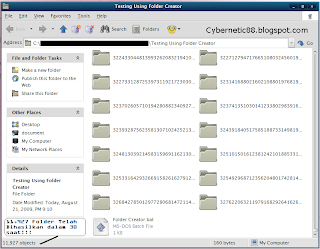 Di post yang lepas saya telah membuat satu program yang dipanggil "Folder Mass" untuk menghasilkan satu jumlah folder dengan mudah dan pantas. Disini saya ingin mengajar anda cara yang lebih pantas dan mudah untuk membuat beribu2 folder atau mungkin berjuta2 folder dalam masa yang agak singkat. Di post yang lepas saya telah membuat satu program yang dipanggil "Folder Mass" untuk menghasilkan satu jumlah folder dengan mudah dan pantas. Disini saya ingin mengajar anda cara yang lebih pantas dan mudah untuk membuat beribu2 folder atau mungkin berjuta2 folder dalam masa yang agak singkat.
Langkah 1 : Bukak notepad anda Langkah 2 : Copy kod di bawah dan pastekannya pada notepad anda @echo off
color 0a
title Cybernetic88 Folder Creator!
:Loop
echo
mkdir %random%%random%%random%%random%%random%%random%%random%%random%%random%
goto :Loop
Langkah 3 : Seterusnya savekan sebagai Folder Creator.bat atau AnyName.bat Langkah 4 : Jalankan Script .Bat tersebut dan lihat hasilnya * Jangan jalankan Script .Bat ini pada desktop anda, kemungkinan pc anda akan "hang"
* Jangan sesekali menggunakan Script .Bat ini untuk tujuan yang jahat
  Program ini berupaya membuat folder dengan jumlah yang tertentu. Mendapat ilham untuk membuatnya dari post "Membuat Ribuan Folder Dengan Cepat". Program ini tidak mempunyai banyak fungsi lagi, hanya boleh membuat folder dengan menggunakan nombor. Kemungkinan versi2 yang akan datang saya akan mengupdatenya dengan fungsi tambahan. Fungsi yang utama saya masukkan ialah save dan get setting untuk angka (Membolehkan auto save apabila program dibuka kembali) Program ini berupaya membuat folder dengan jumlah yang tertentu. Mendapat ilham untuk membuatnya dari post "Membuat Ribuan Folder Dengan Cepat". Program ini tidak mempunyai banyak fungsi lagi, hanya boleh membuat folder dengan menggunakan nombor. Kemungkinan versi2 yang akan datang saya akan mengupdatenya dengan fungsi tambahan. Fungsi yang utama saya masukkan ialah save dan get setting untuk angka (Membolehkan auto save apabila program dibuka kembali)
Cara untuk menggunakannya :
1. Buatkan satu folder kosong
* Ini untuk memastikan anda tidak sengaja menekan butang Make Folder! pada desktop anda.
2. Masukkan Folder Mass ke dalam folder tersebut dan bukakkan program
3. Di frame folder options masukkan jumlah folder yang anda inginkan seperti (1) pada FROM dan (8000) pada TO
* Anda boleh juga mengubahkan angka pada FROM untuk jumlah yang besar, ini hanya akan membuatkan nama folder bermula dari angka yang anda masukkan
4. Akhir sekali tekan butang Make Folder!
5. Bila statusbar bertukar Done!, bermakna folder yang anda buat akan terhasil (Lihat gambar di atas)
Dapatkan Versi Portable disini :
MediaFire
2Shared
Megaupload
* Post yang berikut saya akan mengajar bagaimana untuk menghasilkan folder tanpa henti dengan menggunakan Script .Bat

Selamat datang Ramadhan, bulan suci yang penuh berkah Hari-harimu mengukir sejarah indah tidak terlupa Inilah bulan di mana Allah menurunkan Al-Quran sebgai pedoman Inilah bulan di mana kaum Muslimin berjaya menewaskan kafir Quraish di padang Badar Dan inilah bulan di mana kaum Muslimin berjaya menawan bandar suci makkah
Selamat datang Ramadhan!
Kami rindu kegembiraan berbuka puasa bersama keluarga
Kami rindu bertarawih di malam-malam yang mulia
Kami ingin bersujud kepada Allah di malam Lailatur Qadar
Ya Allah!
Pada bulan suci yang penuh berkah ini
Curahkanlah kepada kami redha dan rahmat dari telaga kasih-Mu
Basuhlah kesedihan dan kerunsingan kami dengan cahaya seribu bulan
Amin.
* Salam Ramadhan buat teman2 yang mengenali diriku.
puasa wei! =P
 Ini adalah trick palsu, tetapi merupakan trick yang bagus untuk dipelajari. Ini adalah trick palsu, tetapi merupakan trick yang bagus untuk dipelajari.
Anda hanya perlu mengikuti langkah2 berikut :
1. Tekan butang Start dan pergi ke Run (Windows + R)
2. taipkan Regedit
3. Pergi ke HKEY_LOCAL_MACHINE\HARDWARE\DESCRIPTION\System\CentralProcessor\0
4. Disitu cari string ProcessorNameString dan ubah kepada apa sahaja yang anda suka

 BugMeNot.com merupakan salah satu cara untuk memotong (bypass) kemasukan ke web yang memerlukan pendaftaran dan pelbagai informasi tentang diri anda seperti scribd, nytimes, youtube, etc. BugMeNot.com merupakan salah satu cara untuk memotong (bypass) kemasukan ke web yang memerlukan pendaftaran dan pelbagai informasi tentang diri anda seperti scribd, nytimes, youtube, etc.
Cara untuk menggunakannya :
Langkah 1 : Layari laman web BugMeNot.com
Langkah 2 : Masukkan URL laman web yang anda ingin dapatkan login kemasukan
Langkah 3 : Tekan butang "Get Logins"
Langkah 4 : Copy username dan password yang muncul
* Jika tiada kemungkinan laman web tersebut sudah direport dan telah diklasifikasikan sebagai "block list" Langkah 5 : Pergi ke website yang anda masukkan dalam Langkah 2 dan pastekan username dan password
Sila klik untuk ke website BugMeNot.com
Dapatkan plugin ini untuk Mozilla Firefox Mozilla Add-Onns
 1. Tekan Start button dan pergi kepada control panel 1. Tekan Start button dan pergi kepada control panel
2. Klik kan mouse anda ke "Regional and Language Option"
3. Di Regional Option pilih butang Customize...
4. Tekan Time dan ubah nama yang anda mahu pada kotak Am Symbol dan Pm Symbol
* Lihat gambar di atas
5. Tekan OK dan lihat hasilnya
Pilihan untuk mengganti nama anda ke kiri, bukan kanan :
Di bawah kotak Time Format, tukarkan tt kedepan
Sebagai contoh h:mm:ss tt tukar kepada tt h:mm:ss
Kemudian nama anda akan muncul pada sebelah kiri
 Hanya salin kod dibawah dan pastekan di notepad, seterusnya namakan sebagai Matrix.bat atau AnyName.bat Hanya salin kod dibawah dan pastekan di notepad, seterusnya namakan sebagai Matrix.bat atau AnyName.bat
@echo off
color 0a
title Cybernetic88 Matrix Style!
:matrix
echo
%random%%random%%random%%random%%random%%random%%random%%random%%random%
goto :matrix
Untuk menjalankannya, hanya double click file .bat tersebut dan tekan ALT + ENTER untuk besarkan screen Command Prompt
 Pernahkah anda membuat folder dalam satu jumlah yang besar?. Anda akan mendapati betapa banyak waktu yang akan terbuang. Folder Wizard baru dapat membantu anda membuat ribuan folder (SEKARANG termasuk sub-folder) dengan cepat dan mudah. Pilihan termasuk penomboran folder, awalan dan akhiran teks, padding nol, dan menggunakan file teks sebagai sumber untuk nama folder. Menggunakan program ini dapat membantu anda mengatur gambar atau file lainnya yang dikehendaki dengan mudah. Pernahkah anda membuat folder dalam satu jumlah yang besar?. Anda akan mendapati betapa banyak waktu yang akan terbuang. Folder Wizard baru dapat membantu anda membuat ribuan folder (SEKARANG termasuk sub-folder) dengan cepat dan mudah. Pilihan termasuk penomboran folder, awalan dan akhiran teks, padding nol, dan menggunakan file teks sebagai sumber untuk nama folder. Menggunakan program ini dapat membantu anda mengatur gambar atau file lainnya yang dikehendaki dengan mudah.
* Download Portable version
* Memerlukan . NET FrameWork 2.0 untuk berfungsi
Sila klik untuk download di website NewFolderWizard
 Jika Anda memiliki beberapa account Google Talk, anda mungkin ingin menjalankan beberapaaccount dari Google Talk sekaligus. Berikut adalah cara untuk melakukannya : Jika Anda memiliki beberapa account Google Talk, anda mungkin ingin menjalankan beberapaaccount dari Google Talk sekaligus. Berikut adalah cara untuk melakukannya :
1. Pertama, buatkan satu copy shortcut Google Talk pada desktop anda
2. Right click pada shorcut tersebut dan pilih properties. Anda akan melihat pada kotak target yang bertulis "C:\Program Files\Google\Google Talk\googletalk.exe"
3. Tukarkannya kepada
"C:\Program Files\Google\Google Talk\googletalk.exe" /nomutex
4. Klik ok
5. Untuk melihat perubahannya, double click shortcut tersebut 2 kali
 Ingin menyembunyikan .zip atau .rar file? Ingin menyembunyikan .zip atau .rar file?
Ikuti langkah berikut :
1. Pilih gambar yang anda minat dan letakkannya di desktop
2. Buat file .rar atau .zip baru dan letakkannya di desktop juga
3. Masukkan file yang anda mahu sembunyikan dalam .zip atau .rar
4. Bukak "Command Prompt" (Windows + R. Taipkan CMD)
5. Di Command Prompt, taipkan "cd desktop"
6. Sekarang taipkan "copy /b picturename.jpg + foldername.rar outputfilename.jpg"
* Jika anda menggunakan file .zip, maka taipkan "copy /b picturename.jpg + foldername.zip outputfilename.jpg"
7. Sekarang anda akan mendapati file .jpg yang baru akan terhasil pada desktop anda
8. Jika anda mahu melihat hidden file kembali, hanya taipkan "ren outputfilename.jpg outputfilename.rar" or zip
 Bagaimana untuk menonton movie melalui microsoft paint? Bagaimana untuk menonton movie melalui microsoft paint?
Ini yang perlu anda lakukan :
1. Bukak movie kegemaran anda melalui default movie player (Winamp, Movie Media Player, Real Player, Vlc Player, Etc)
2. Tekan butang "PrintScreen", ingat! biarkan movie itu terus dimainkan, jangan hentikannya
3. Bukak Microsoft Paint(MsPaint)
4. Pastekan "CTRL + V"
* Butang2 seperti Pause, Next, Previous, Stop, Etc tidak akan berfungsi
* Tidak support format "Divx", Flash Movies, Etc
 Ini adalah trick yang menarik untuk menonton Star Wars Episode IV mengunakan Telnet. Ini adalah trick yang menarik untuk menonton Star Wars Episode IV mengunakan Telnet.
Sebelum itu pastikan komputer anda mempunyai talian internet
1. Pergi ke Run (Windows + R)
2. Taipkan atau copy "telnet towel.blinkenlights.nl"
3. Tekan Enter
4. Selamat menonton =)
 Untuk melakukan kata arahan berikut anda perlulah menekan Windows + R dan masukkan kata arahan yang anda mahu Untuk melakukan kata arahan berikut anda perlulah menekan Windows + R dan masukkan kata arahan yang anda mahu
Accessibility Controls
access.cpl

Add Hardware Wizard
hdwwiz.cpl

Add/Remove Programs
appwiz.cpl

Administrative Tools
control.exe admintools

Automatic Updates
wuaucpl.cpl

Bluetooth Transfer Wizard
fsquirt

Calculator
calc

Certificate Manager
certmgr.msc

Character Map
charmap

Check Disk Utility
chkdsk

Clipboard Viewer
clipbrd

Command Prompt
cmd

Component Services
dcomcnfg

Computer Management
compmgmt.msc

Date and Time Properties
timedate.cpl

DDE Shares
ddeshare

Device Manager
devmgmt.msc

Direct X Control Panel (if installed)*
directx.cpl

Direct X Troubleshooter
dxdiag

Disk Cleanup Utility
cleanmgr

Disk Defragment
dfrg.msc

Disk Management
diskmgmt.msc

Disk Partition Manager
diskpart

Display Properties
control.exe desktop

Display Properties
desk.cpl

Display Properties (w/Appearance Tab Preselected)
control.exe color

Dr. Watson System Troubleshooting Utility
drwtsn32

Driver Verifier Utility
verifier

Event Viewer
eventvwr.msc

File Signature Verification Tool
sigverif

Findfast
findfast.cpl

Folders Properties
control.exe folders

Fonts
control.exe fonts

Fonts Folder
fonts

Free Cell Card Game
freecell

Game Controllers
joy.cpl

Group Policy Editor (XP Prof)
gpedit.msc

Hearts Card Game
mshearts

Iexpress Wizard
iexpress

Indexing Service
ciadv.msc

Internet Properties
inetcpl.cpl

Java Control Panel (if installed)
jpicpl32.cpl

Java Control Panel (if installed)
javaws

Keyboard Properties
control.exe keyboard

Local Security Settings
secpol.msc

Local Users and Groups
lusrmgr.msc

Logs You Out Of Windows
logoff

Mcft Chat
winchat

Minesweeper Game
winmine

Mouse Properties
control.exe mouse

Mouse Properties
main.cpl

Network Connections
control.exe netconnections

Network Connections
ncpa.cpl

Network Setup Wizard
netsetup.cpl

Nview Desktop Manager (if installed)
nvtuicpl.cpl

Object Packager
packager

ODBC Data Source Administrator
odbccp32.cpl

On Screen Keyboard
osk

Opens AC3 Filter (if installed)
ac3filter.cpl

Password Properties
password.cpl

Performance Monitor
perfmon.msc

Performance Monitor
perfmon

Phone and Modem Options
telephon.cpl

Power Configuration
powercfg.cpl

Printers and Faxes
control.exe printers

Printers Folder
printers

Private Character Editor
eudcedit

Quicktime (If Installed)
QuickTime.cpl

Regional Settings
intl.cpl

Registry Editor
regedit

Registry Editor
regedit32

Removable Storage
ntmsmgr.msc

Removable Storage Operator Requests
ntmsoprq.msc

Resultant Set of Policy
rsop.msc

Resultant Set of Policy (XP Prof)
rsop.msc

Scanners and Cameras
sticpl.cpl

Scheduled Tasks
control.exe schedtasks

Security Center
wscui.cpl

Services
services.msc

Shared Folders
fsmgmt.msc

Shuts Down Windows
shutdown

Sounds and Audio
mmsys.cpl

Spider Solitare Card Game
spider

SQL Client Configuration
cliconfg

System Configuration Editor
sysedit

System Configuration Utility
msconfig

System File Checker Utility
sfc

System Properties
sysdm.cpl

Task Manager
taskmgr

Telnet Client
telnet

User Account Management
nusrmgr.cpl

Utility Manager
utilman

Windows Firewall
firewall.cpl

Windows Magnifier
magnify

Windows Management Infrastructure
wmimgmt.msc

Windows System Security Tool
syskey

Windows Update Launches
wupdmgr

Windows XP Tour Wizard
tourstart

Wordpad
write
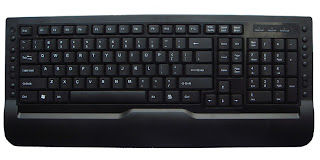 Kerja anda mungkin akan menjadi lebih mudah jika anda mengetahui banyak tentang keyboard shortcut. Di sini saya senaraikan semua shortcut yang boleh anda praktikkan dalam urusan harian anda Kerja anda mungkin akan menjadi lebih mudah jika anda mengetahui banyak tentang keyboard shortcut. Di sini saya senaraikan semua shortcut yang boleh anda praktikkan dalam urusan harian anda
CTRL+C (Copy)
CTRL+X (Cut)
CTRL+V (Paste)
CTRL+Z (Undo)
DELETE (Delete)
SHIFT+DELETE (Delete the selected item permanently without placing the item in the Recycle Bin)
CTRL while dragging an item (Copy the selected item)
CTRL+SHIFT while dragging an item (Create a shortcut to the selected item)
F2 key (Rename the selected item)
CTRL+RIGHT ARROW (Move the insertion point to the beginning of the next word)
CTRL+LEFT ARROW (Move the insertion point to the beginning of the previous word)
CTRL+DOWN ARROW (Move the insertion point to the beginning of the next paragraph)
CTRL+UP ARROW (Move the insertion point to the beginning of the previous paragraph)
CTRL+SHIFT with any of the arrow keys (Highlight a block of text)
SHIFT with any of the arrow keys (Select more than one item in a window or on the desktop, or select text in a document)
CTRL+A (Select all)
F3 key (Search for a file or a folder)
ALT+ENTER (View the properties for the selected item)
ALT+F4 (Close the active item, or quit the active program)
ALT+ENTER (Display the properties of the selected object)
ALT+SPACEBAR (Open the shortcut menu for the active window)
CTRL+F4 (Close the active document in programs that enable you to have multiple documents open simultaneously)
ALT+TAB (Switch between the open items)
ALT+ ESC (Cycle through items in the order that they had been opened)
F6 key (Cycle through the screen elements in a window or on the desktop)
F4 key (Display the Address bar list in My Computer or Windows Explorer)
SHIFT+F10 (Display the shortcut menu for the selected item)
ALT+SPACEBAR (Display the System menu for the active window)
CTRL+ESC (Display the Start menu)
ALT+Underlined letter in a menu name (Display the corresponding menu)
Underlined letter in a command name on an open menu (Perform the corresponding command)
F10 key (Activate the menu bar in the active program)
RIGHT ARROW (Open the next menu to the right, or open a submenu)
LEFT ARROW (Open the next menu to the left, or close a submenu)
F5 key (Update the active window)
BACKSPACE (View the folder one level up in My Computer or Windows Explorer)
ESC (Cancel the current task)
SHIFT when you insert a CD-ROM into the CD-ROM drive (Prevent the CD-ROM from automatically playing)
Dialog Box Keyboard Shortcuts
CTRL+TAB (Move forward through the tabs)
CTRL+SHIFT+TAB (Move backward through the tabs)
TAB (Move forward through the options)
SHIFT+TAB (Move backward through the options)
ALT+Underlined letter (Perform the corresponding command or select the corresponding option)
ENTER (Perform the command for the active option or button)
SPACEBAR (Select or clear the check box if the active option is a check box)
Arrow keys (Select a button if the active option is a group of option buttons)
F1 key (Display Help)
F4 key (Display the items in the active list)
BACKSPACE (Open a folder one level up if a folder is selected in the Save As or Open dialog box)
m*cro$oft Natural Keyboard Shortcuts
Windows Logo (Display or hide the Start menu)
Windows Logo+BREAK (Display the System Properties dialog box)
Windows Logo+D (Display the desktop)
Windows Logo+M (Minimize all of the windows)
Windows Logo+SHIFT+M (Restore the minimized windows)
Windows Logo+E (Open My Computer)
Windows Logo+F (Search for a file or a folder)
CTRL+Windows Logo+F (Search for computers)
Windows Logo+F1 (Display Windows Help)
Windows Logo+ L (Lock the keyboard)
Windows Logo+R (Open the Run dialog box)
Windows Logo+U (Open Utility Manager)
Accessibility Keyboard Shortcuts
Right SHIFT for eight seconds (Switch FilterKeys either on or off)
Left ALT+left SHIFT+PRINT SCREEN (Switch High Contrast either on or off)
Left ALT +left SHIFT+NUM LOCK (Switch the MouseKeys either on or off)
SHIFT five times (Switch the StickyKeys either on or off)
NUM LOCK for five seconds (Switch the ToggleKeys either on or off)
Windows Logo +U (Open Utility Manager)
Windows Explorer Keyboard Shortcuts
END (Display the bottom of the active window)
HOME (Display the top of the active window)
NUM LOCK +Asterisk sign (*) (Display all of the subfolders that are under the selected folder)
NUM LOCK+Plus sign (+) (Display the contents of the selected folder)
NUM LOCK+Minus sign (-) (Collapse the selected folder)
LEFT ARROW (Collapse the current selection if it is expanded, or select the parent folder)
RIGHT ARROW (Display the current selection if it is collapsed, or select the first subfolder)
Shortcut Keys for Character Map
After you double-click a character on the grid of characters, you can move through the grid by using the keyboard shortcuts:
RIGHT ARROW (Move to the right or to the beginning of the next line)
LEFT ARROW (Move to the left or to the end of the previous line)
UP ARROW (Move up one row)
DOWN ARROW (Move down one row)
PAGE UP (Move up one screen at a time)
PAGE DOWN (Move down one screen at a time)
HOME (Move to the beginning of the line)
END (Move to the end of the line)
CTRL+HOME (Move to the first character)
CTRL+END (Move to the last character)
SPACEBAR (Switch between Enlarged and Normal mode when a character is selected)
m*cro$oft Management Console (MMC) Main Window Keyboard Shortcuts
CTRL+O (Open a saved console)
CTRL+N (Open a new console)
CTRL+S (Save the open console)
CTRL+M (Add or remove a console item)
CTRL+W (Open a new window)
F5 key (Update the content of all console windows)
ALT+SPACEBAR (Display the MMC window menu)
ALT+F4 (Close the console)
ALT+A (Display the Action menu)
ALT+V (Display the View menu)
ALT+F (Display the File menu)
ALT+O (Display the Favorites menu)
MMC Console Window Keyboard Shortcuts
CTRL+P (Print the current page or active pane)
ALT+Minus sign (-) (Display the window menu for the active console window)
SHIFT+F10 (Display the Action shortcut menu for the selected item)
F1 key (Open the Help topic, if any, for the selected item)
F5 key (Update the content of all console windows)
CTRL+F10 (Maximize the active console window)
CTRL+F5 (Restore the active console window)
ALT+ENTER (Display the Properties dialog box, if any, for the selected item)
F2 key (Rename the selected item)
CTRL+F4 (Close the active console window. When a console has only one console window, this shortcut closes the console)
Remote Desktop Connection Navigation
CTRL+ALT +END (Open the m*cro$oft Windows NT Security dialog box)
ALT+ PAGE UP (Switch between programs from left to right)
ALT+ PAGE DOWN (Switch between programs from right to left)
ALT+INSERT (Cycle through the programs in most recently used order)
ALT+HOME (Display the Start menu)
CTRL+ALT +BREAK (Switch the client computer between a window and a full screen)
ALT+DELETE (Display the Windows menu)
CTRL+ALT +Minus sign (-) (Place a snapshot of the active window in the client on the Terminal server clipboard and provide the same functionality as pressing PRINT SCREEN on a local computer.)
CTRL+ALT +Plus sign (+) (Place a snapshot of the entire client window area on the Terminal server clipboard and provide the same functionality as pressing ALT+PRINT SCREEN on a local computer.)
m*cro$oft Internet Explorer Navigation
CTRL+B (Open the Organize Favorites dialog box)
CTRL+E (Open the Search bar)
CTRL+F (Start the Find utility)
CTRL+H (Open the History bar)
CTRL+I (Open the Favorites bar)
CTRL+L (Open the Open dialog box)
CTRL+N (Start another instance of the browser with the same Web address)
CTRL+O (Open the Open dialog box, the same as CTRL+L)
CTRL+P (Open the Print dialog box)
CTRL+R (Update the current Web page)
CTRL+W (Close the current window
 ConvertICO adalah laman web "Online Converter" yang menyediakan servis percuma dalam menukarkan file ICO kepada PNG dan file PNG kepada ICO. Ianya senang untuk digunakan, hanya masukkan url atau upload file dan tekan butang CONVERT ConvertICO adalah laman web "Online Converter" yang menyediakan servis percuma dalam menukarkan file ICO kepada PNG dan file PNG kepada ICO. Ianya senang untuk digunakan, hanya masukkan url atau upload file dan tekan butang CONVERT
Sila klik untuk ke website ConvertIco
 Anda mahukan background pendrive/drive anda seperti itu?. Jika ya ikuti langkah berikut : Anda mahukan background pendrive/drive anda seperti itu?. Jika ya ikuti langkah berikut :
1. Copy kod dibawah [autorun]
[{BE098140-A513-11D0-A3A4-00C04FD706EC}]
ICONAREA_IMAGE=01.jpg
ICONAREA_TEXT=8454143
ICON=nn.ico
2. Savekan sebagai desktop.ini dan letakkannya pada pendrive/drive 3. Cari wallpaper yang anda minat untuk dijadikan sebagai background pada pendrive/drive
* Sebaiknya wallpaper tidak terlalu berserabut kerana menyukarkan warna tulisan
4. Copy dan pastekan wallpaper anda tersebut dan namakan sebagai 01.jpg
* Anda boleh menukar kepada nama yang anda mahukan dan pastikan pada kod dekstop.ini anda mengubahkan ICONAREA_IMAGE="NAMA".jpg
5. Refresh pendrive/drive anda dan lihat hasilnya
Untuk mengubah warna pilih beberapa contoh warna kod di bawah dan gantikan dengan kod yang sedia ada
IconArea_Text=00000000 - Black
IconArea_Text=11111111 - Pink
IconArea_Text=22222222 - Black / Maroon
IconArea_Text=33333333 - Black / Light Blue
IconArea_Text=44444444 - Blue
IconArea_Text=55555555 - Black / orange
IconArea_Text=66666666 - Black / Lavander
IconArea_Text=77777777 - Teal
IconArea_Text=88888888 - Black
IconArea_Text=16777215 - White
IconArea_Text=255 - Red
IconArea_Text=65280 - Green
IconArea_Text=16744576 - Purple
IconArea_Text=8454143 - Yellow
IconArea_Text=12632256 - Grey
IconArea_Text=32896 - Brown
Apa yang perlu anda buat : 1. Bukak notepad 2. Copy kod dibawah [autorun]
icon=myicon.ico
3. Save fail tersebut kepada autorun.inf 4. Sekarang cari icon (.ico), sebaiknya yang bersaiz 128x128 5. Copy icon anda kedalam pendrive dan namakannya sebagai myicon.ico
* Anda boleh namakan apa saja nama yang anda mahukan tetapi jangan lupa untuk mengubah nama icon di file autorun.inf
6. Keluarkan pendrive anda masukkannya kembali. Sekarang anda dapat melihat icon pada pendrive anda sudah bertukar
Anda boleh menghiddenkan file autorun.inf dan myicon.ico dengan right-click pada file tersebut dan pilih properties. Akhir sekali tick pada hidden dan tekan apply.
* Virus yang menyebar melalui pendrive selalu memiliki sendiri file autorun.inf. Jadi, jika virus telah menyebar dalam pendrive anda, maka autorun.inf akan digantikan oleh virus' s autorun.inf file icon dan icon anda tidak akan muncul. Sebaiknya anda lebih berhati-hati supaya tidak double-click pendrive tersebut
 Dengan speedtest anda boleh menguji sejauh mana kelajuan internet anda dari segi download dan upload. Pilih lokasi yang berdekatan dengan anda dan tunggu untuk beberapa ketika supaya proses download dan upload dapat dijalankan. Dengan speedtest anda boleh menguji sejauh mana kelajuan internet anda dari segi download dan upload. Pilih lokasi yang berdekatan dengan anda dan tunggu untuk beberapa ketika supaya proses download dan upload dapat dijalankan.
Klik disini untuk ke website SpeedTest
 Berapa lajukah anda menaip?. Kini anda boleh menguji kepantasan jari jemari anda dengan menulis semula perkataaan yang diberikan dalam masa 60 saat. Apabila masa yang diberikan sudah tamat satu keputusan akan terpapar mengatakan tentang berapa patah perkataan yang anda dapat taip dan kesalahan ejaan yang anda lakukan.
Anda juga dapat berkongsikan maklumat dengan rakan2 anda. Ini hasil saya yang "agak" memuaskan
|


 Windowz system ini adalah program khusus untuk memudahkan anda shutdown, restart, log off dan hapuskan file di dalam recycle bin anda. Fungsi2 yang saya masukkan di dalam program ini antaranya ialah always on top, system tray, run at startup dan transparent. Ianya bersaiz kecil dan mudah digunakan. Interfacenya juga dibuat bagi mesra pengguna dan terdapat masa dan tarikh pada bahagian statusbar. Apabila anda mengetick Run at Startup, program ini akan sentiasa muncul pada bawah kiri (berhampiran start button) setiap kali anda menghidupkan komputer. Jikalau anda tertekan butang shutdown atau restart, anda boleh menghentikan proses ini dengan menekan butang abort. Setiap proses di beri masa sebanyak 15 saat kecuali log off. Diharap program ini dapat memberi kemudahan kepada pengguna. Sebarang "bug", masalah atau cadangan sila tinggalkan komen di sini